

WHAT IS IPTV?
IPTV refers to Internet-based Protocol Television where internet is used to deliver TV programs & Videos that are either live or on demand. IPTV is a system where digital television service is delivered to the subscriber through Internet protocol technology via the medium of broadband or internet connection.
iptv tutorials
**PLEASE NOTE: AFTER YOU HAVE SIGNED UP FOR OUR SERVICE YOU WILL RECEIVE A “SEPARATE” EMAIL WITH ALL OF YOUR IPTV LOGIN CREDENTIALS FOR ACCESS TO OUR SERVICE. YOUR IPTVZONES WEBSITE USERNAME AND PASSWORD ACCOUNT THAT YOU CREATE TO SET UP YOUR ACCOUNT ON OUR SITE ARE NOT YOUR LOGIN CREDENTIALS FOR YOUR IPTV SERVICE.**
SMART TV ( SAMSUNG, LG Etc... ) - Unofficial App*
(SMART TV) LG OR SAMSUNG
App required- (SMART IPTV APP)
Smart IPTV App – It is super easy, All you gotta do is install the SMART IPTV App and then you will see a MAC ADDRESS on the screen.
Email us the MAC Address and once we have confirmed the payment we will add the MAC Address to our server and you will receive a notification to restart the app. That is it, You will now have ALL your channels.
HOW TO INSTALL ?
1- Download Smart IPTV app on the device. The APP is not FREE but it is included in the initial activation FEE.
2- You will see the MAC address on the screen. (E.g. 01:d2:45:56:ab)
3- Give us the MAC address through (Email) and once payment as been confirmed your device will be added to our server and you will receive an email notification that setup is complete.
FIRESTICK/TV DEVICES
- From the Fire TV or Fire TV Stick’s home screen, scroll to “Settings”.

- Next, scroll to the right and select “Device”.

- Next, scroll down and select “Developer options”.

- Then select “Apps from Unknown Sources” to turn the option to “ON”.

- Lastly, select “Turn On” from the popup message that appears.

- Return to Firestick / Fire TV Home screen and type in Downloader. Download the DOWNLOADER (Orange App) and install.
- Next, open the Downloader App
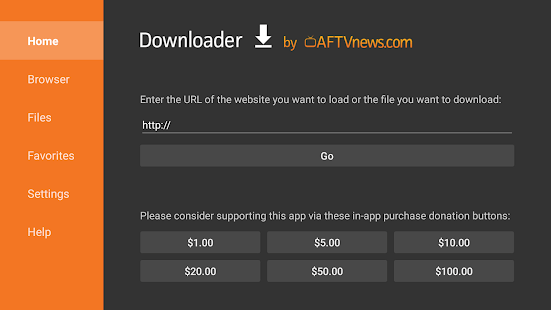
8. In the http:// box type in https://iptvzones.page.link/app click ok to download and install the custom IPTVZONES App.
9. Run the IPTVZONES App and log in with your username/password credentials.
ANDROID DEVICES
1. Download our IPTVZONES OFFICIAL APP (here) and run install and to log in enter your username and password credentials. (Simplest Way)
Alternative download link: https://iptvzones.page.link/app
WEB BROWSER LIVE TV PLAYER
Goto http://watch.iptvzones.com/webplayer/ and login with your login credentials to Watch Live TV in any supported web browser (Firefox, Chrome, IE, Edge, Safari)
SET TOP BOXES (STB)
Please email us the MAC Address of your Set Top Box
WINDOWS APP
Download the Windows App Here
MAC OSX APP
Coming Soon.
IOS Devices (Apple, iPhone, etc) - Unofficial App*
- Download IPTV Smarters Pro App from IOS Store
- Once installed, Click Add New User.
- Select “Login with Xtream Codes API”.
- Any Name: Type anything you want to name it.
- Enter Username/Password Credentials in the Subscription Details (NOT the IPTVZONES registration credentials).
- Enter http://live.iptvzones.com:9100 as the server IP Address:Port information and click Add user.
- When complete, click on your user you just created and you are done.
** We are not responsible for the instability in ANY of the UNSUPPORTED APPs listed above. Android App, Windows App and Firestick Devices are highly recommended for BEST stability as they use our OFFICIAL APP but not required.